A teleprompter under your Mac's camera
Read your script where the lens is. Nobody watching sees it.
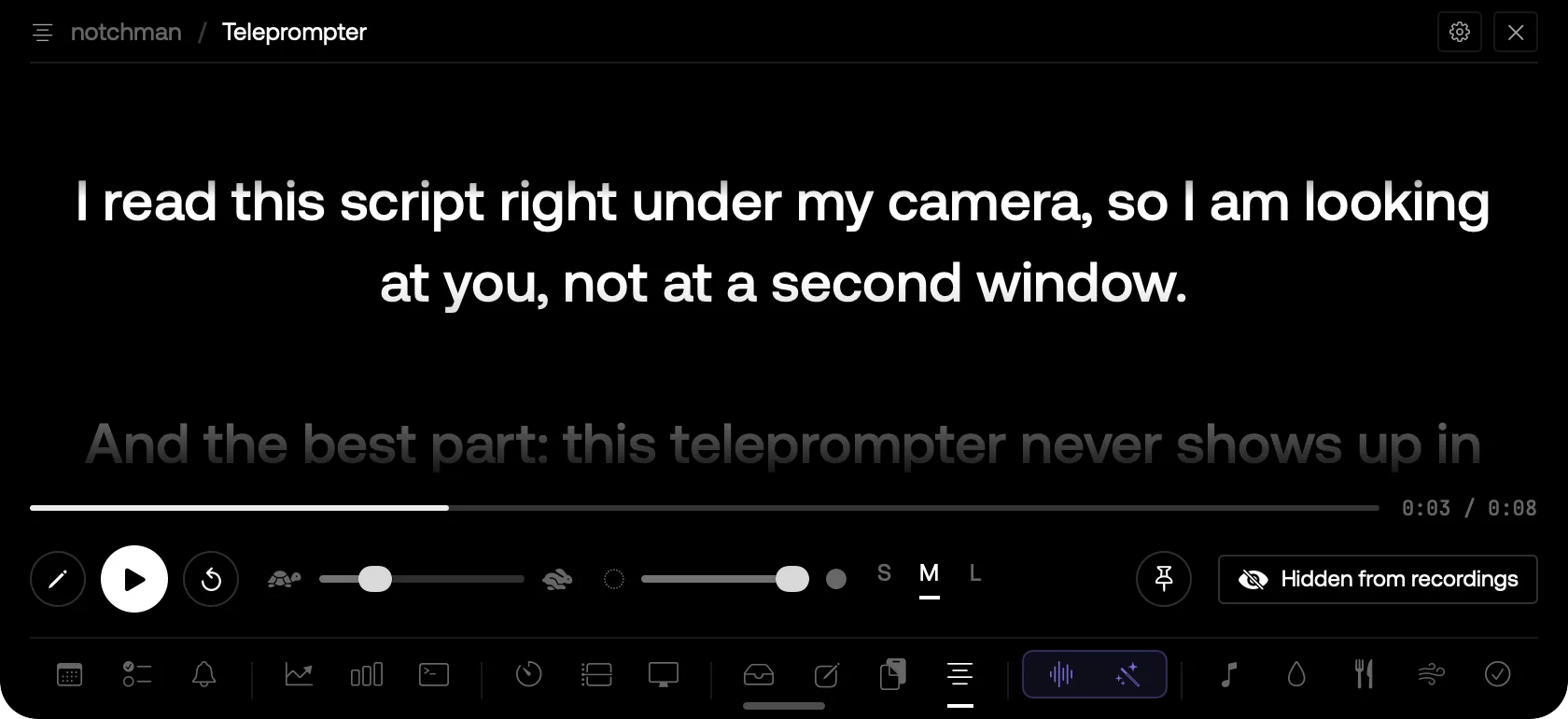
THE SCRIPT UNDER THE CAMERA, HIDDEN FROM THE RECORDING.
01 · The problem
Reading from a second window means looking away from the camera, and a teleprompter app sitting on your screen shows up in the very recording you're making. You end up memorising, or cropping, or both.
02 · How Teleprompter works
Paste your script into the Teleprompter tab. It scrolls right under the camera, so your eyes stay near the lens. Press play for a 3, 2, 1, then change the speed or the text size as you go.
It stays out of your recordings and screen shares: QuickTime, ⇧⌘5 and the many apps that record or share through macOS see whatever is behind it. The eye in the tab turns that off when you want it shown; Settings can hide all of notchman instead.
Keep your hands off the mouse while you record: ⌥⌘P opens it and plays or pauses from any app, ⌥⌘↑ and ⌥⌘↓ change the speed and ⌥⌘← goes back a line. Drag the bar under the script, like a video, to redo any part.
03 · Tips
- Slide the background to clear to see your screen through it; while it plays only the words show.
- Drag the bottom edge for a slim strip under the camera, or pin it and keep working in the app behind it. Point at the notch to get the controls back.
04 · Questions
Will it show up in my recording?
Not by default. While the Teleprompter is open, recordings and screen shares that go through macOS's own screen capture, like QuickTime and ⇧⌘5, see what's behind it. Your mouse pointer is still recorded, so use ⌥⌘P to play and pause.
Does it follow my voice?
Not yet. It scrolls at the speed you set, and you can change it while you read.
Does it work without a notch?
Yes. On Macs and screens without a notch it hangs from the top centre of the screen, under where a camera usually is.
Goes well with
Teleprompter is one of twenty tools in notchman. One-time purchase, everything stays on your Mac.
Updated 2026-10-03