Log where your hours go
Press play on a category. Press play on another to switch. The donut fills in.
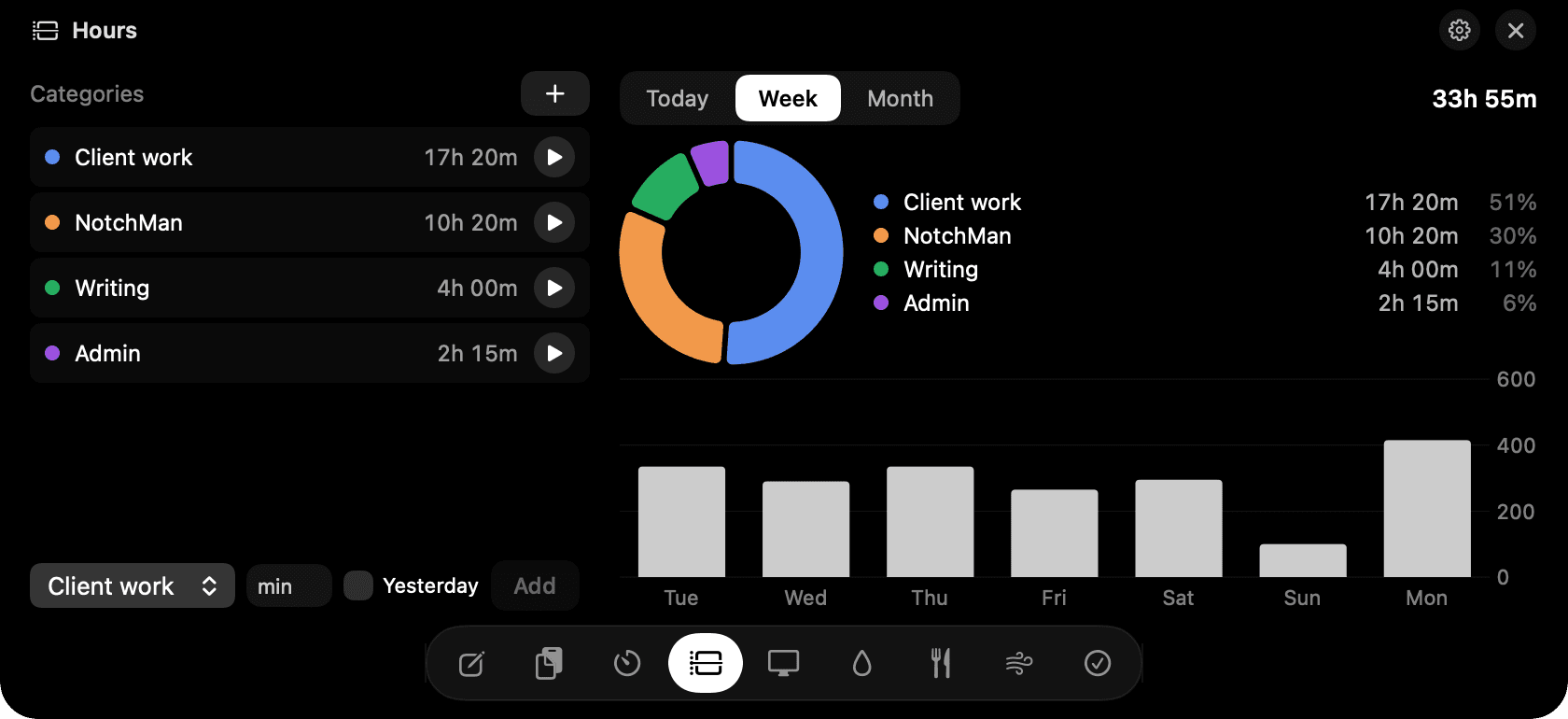
Hours in the notch: press play, and the donut fills in.
The problem
You know you were busy. You don't know on what. Time-tracking apps solve that for freelancers billing clients, and bring a whole project system with them.
How Hours works
Make a few categories: Deep work, Meetings, Admin, whatever your days are made of. Press play on one. Press play on another and the first stops. One clock runs at a time, on purpose.
Forgot to press play? Add the time by hand, for today or yesterday. The donut shows the share for today, this week or this month, and clicking a category filters the daily bars underneath.
Double-click a name to rename it. Right-click to archive a category you no longer use; its time stays in history so old weeks still add up.
Tips
- Keep it to five or six categories. The donut is for a picture of the day, not a ledger.
- Pomodoro blocks are logged under Timers, not here. Use Hours for the shape of the day and Timers for the focus inside it.
Questions
- Can I export the data for invoicing?
- Not in this version. Hours is for your own picture of where time goes, not for billing.
- Can two categories run at the same time?
- No. Starting one stops the other, so the totals always add up to the hours you were actually at the Mac.
- What happens to time when I archive a category?
- It stays in history. Archiving only removes the category from the play list.
Goes well with
Hours is one of nine tools in NotchMan.
One-time purchase, everything stays on your Mac, macOS 14 or later.
Updated 2026-09-21