 notchman
Grab Text⌃⌘T· in Clipboard
Copy text
you can’t select.
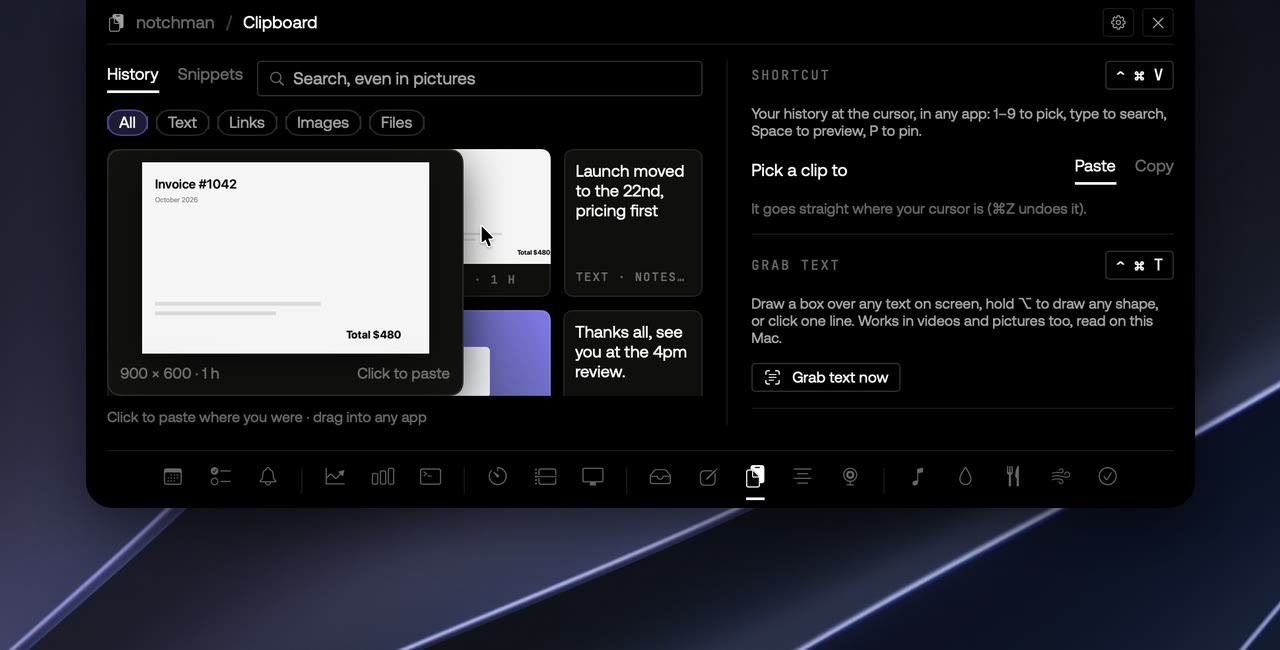
Press ⌃⌘T, then drag a box, draw any shape, click a single line, or press Space for a whole window. Videos, pictures, locked PDFs, error messages: the words land on your clipboard, read on your Mac.
24 tools, one price · macOS 14 or later · 14-day refund
How it works
01
Press ⌃⌘T
From any app. The screen dims so you can choose.
02
Draw a box
Over the words you want. Or click once for one line.
03
Paste
The text is on your clipboard, and in your history.
01 · A box
Drag over the words.
The default: drag a box over any text on screen, in a video, a picture or a locked PDF. Only what’s inside is read.
02 · Any shape
Text that bends or tilts.
Hold ⌥ and draw any shape around text on a slant, a curve or a busy background.
03 · One line
Click once, take one line.
No box needed for a single line: click it and it’s copied.
04 · A whole window
Space takes the window.
Press Space while choosing to take every word in a window at once.
The details
Opens with⌃⌘T, from any app
Works onVideos, images, locked PDFs, error messages, anything on screen
Read byYour Mac. Nothing is uploaded
PermissionsScreen Recording, to see the screen while you choose
Where it livesIn Clipboard for now
notchman comes with Grab Text
and 23 other tools.
One hover away: Teleprompter, Mirror, AI Usage, Revenue, Music and the rest. Pay once, use it every day.
Lifetime license
$4.99$19.99once
Buy for $4.9914-day refund · Secure checkout by Dodo · Your local currencyQuestions
What can it read?
Any text on screen: a paused video, a photo or screenshot, a locked PDF, an error dialog, a slide in a call. Only what’s inside your box or shape is read.
Is anything uploaded?
No. The words are read on your Mac, the way the Clipboard reads screenshots, and land on your clipboard and in your history.
Why does it need Screen Recording?
To see the screen while you choose. macOS asks the first time you press ⌃⌘T.
How do I cancel?
Press Esc, or right-click.